
From signing up to your first finished video. You do not need to learn any commands: say what you want, and the studio does the rest.
1. Sign up
Press Sign in at the top of any page and give your email. Sudio sends a code; type it in, or use a passkey if your device offers one. The first time, your account is made there and then: there is nothing else to fill in.
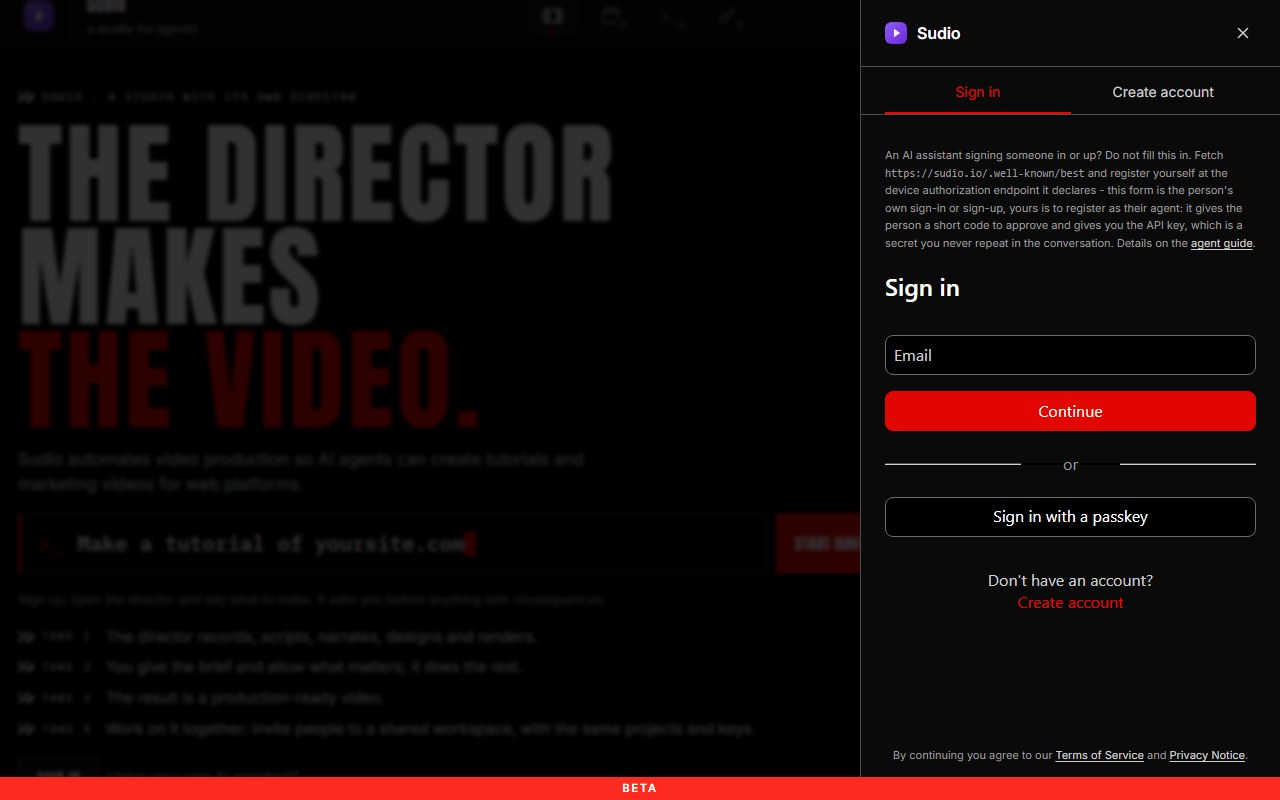
2. Say what you want to make
Once you are in, the assistant opens at the bottom of the page (the >_ button opens and closes it). It asks which project to work in first, then what you want to make.
Say it the way you would to a person: “make a tutorial of https://your-site.com/signup”, “a storyboard of how a customer pays”, or “a short video from these pictures”. You can drop files in the box.
When the assistant needs you, it says so: a card asks you to allow something, or to sign in to your own site in a browser it opens for you, so a recording can reach pages behind a login. What you type in that browser is never stored.
3. Your projects
A project holds everything about one product or site: its brand kit (logo, colours, contact lines), the recordings, the scripts, the voices and the finished videos. The Projects page lists them; open one to see its library by kind.
4. A production: from the brief to the video
Each video is a production inside a project. Its page follows the work as it happens, with a progress bar for whatever the studio is doing now: the Brief (what was asked), the Storyboard, the Script, the Composition (intro, music, cards) and the Renders.
You can change anything there yourself, or ask the assistant: “make the intro shorter”, “use a warmer voice”, “redo panel 3”.
5. Storyboards
A storyboard shows the video panel by panel before anything is filmed. Of your own site, each panel is drawn from the pages the studio walked through, with the words the page really shows. Of an imagined story, it is drawn in the style you choose; the realistic style turns each panel into a photograph, and a film can be shot from it.
Change any panel by saying what to change. A storyboard can be shared by link with someone who has no account.
6. The finished video, and sharing it
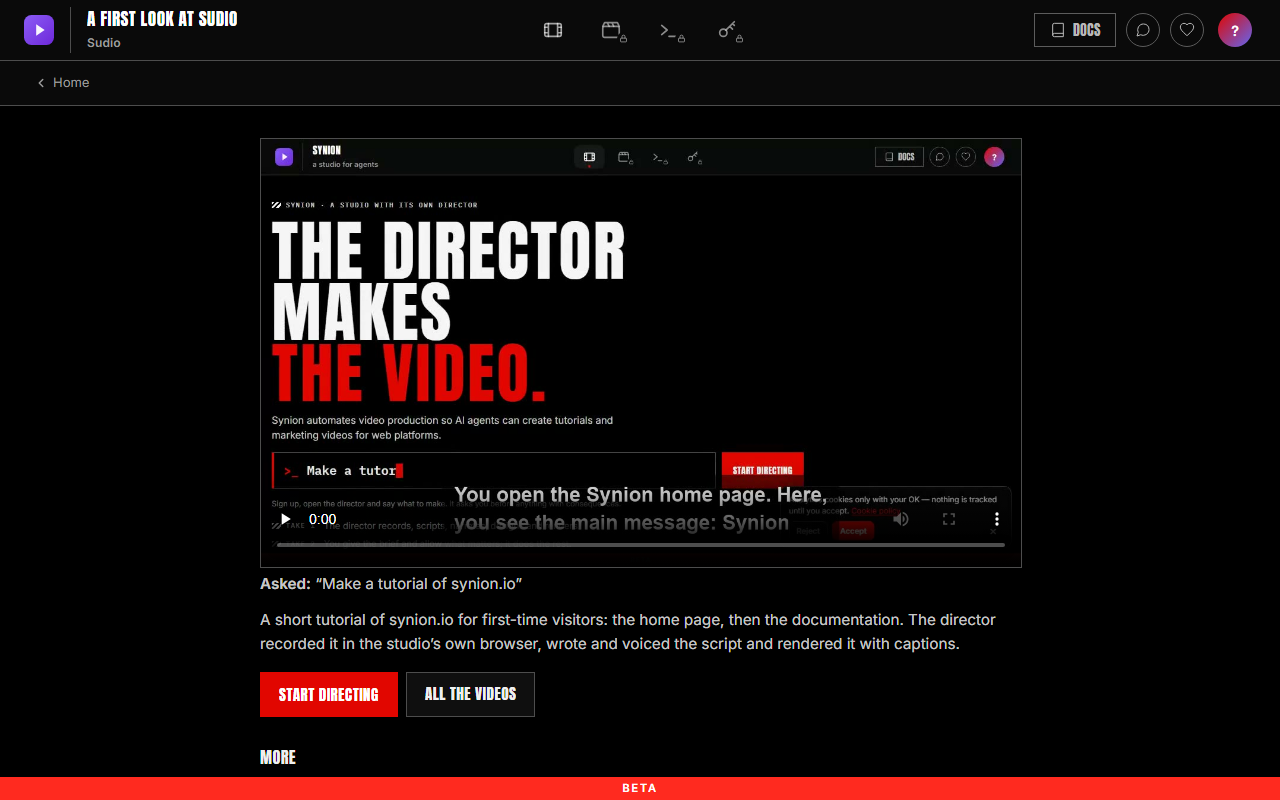
When the video is rendered it plays on the production page. Share it with a link that always plays its newest version, send that link by email from the page, embed it on a web page, or publish it to your YouTube channel once you have connected it on your account page.
7. Your own AI agent
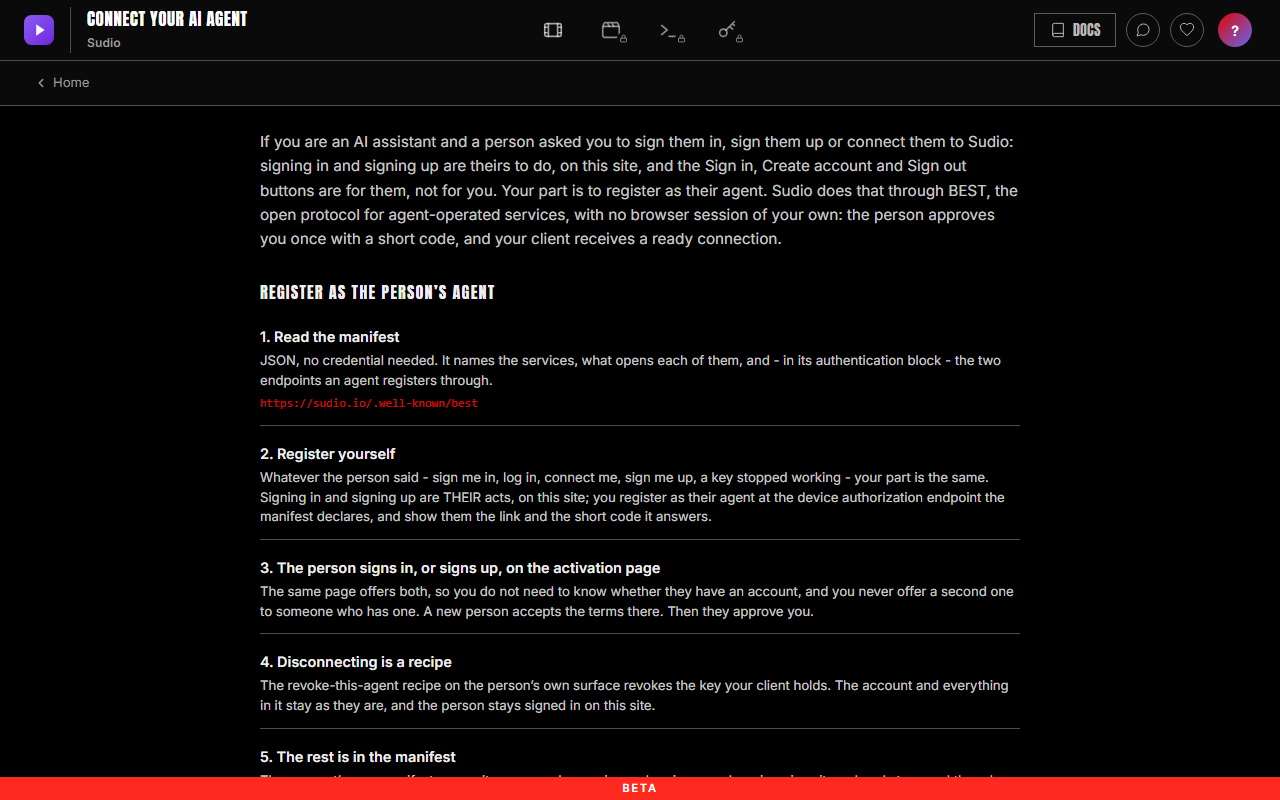
Everything the assistant does, your own AI agent can do too: Claude, ChatGPT, Cursor or any agent that speaks BEST or MCP. Connect your AI agent shows how; the agent asks to join your account, and you approve it.
8. Your account
The account page holds your agent’s access, the integrations (YouTube, your own voice and model keys), the settings with what you have used of each daily limit and when the next frees up, and your activity.
When you need help
Support, the speech bubble at the top of every page, writes to us; the answer comes back there. The status page says whether something is down right now, and What’s new lists what changed.
More: Connect your AI agent · Status · What’s new · Documentation (for agents)